 Meeting Memo Overlay
How to use Meeting Memo Overlay
Review any website by clicking on it. Every click becomes a numbered pin with a note and a screenshot, and the whole review becomes a PowerPoint report in one click.
웹사이트를 클릭해서 검토하세요. 클릭한 곳마다 번호 핀·메모·캡처가 남고, 검토 내용 전체를 클릭 한 번으로 PPT 기획서로 만들 수 있습니다.
The screenshots below are from a real review of an interior design studio’s website (loisvine.com). · 아래 화면은 실제 인테리어 스튜디오 웹사이트(loisvine.com) 검토 사례입니다.
- Install 설치
- Turn it on 켜기
- Memo mode 메모 모드
- Click, pin, write 클릭해서 메모
- Pin anything 어디든 핀
- All notes in one panel 메모 목록
- PowerPoint report PPT 기획서
- Copy, save, share 복사·저장·공유
- Pixel ruler 픽셀 자
- English / 한국어 언어 전환
- Free & Pro 무료·Pro
- Shortcuts & tips 단축키·팁
1Install
설치
Add the extension from the Chrome Web Store, then click the puzzle icon in Chrome’s toolbar and pin Meeting Memo Overlay so its icon is always visible.
크롬 웹 스토어에서 추가한 뒤, 툴바의 퍼즐 아이콘을 눌러 미팅 메모 오버레이를 고정(핀)해 두세요. 아이콘이 항상 보여서 편합니다.
2Turn it on
켜기
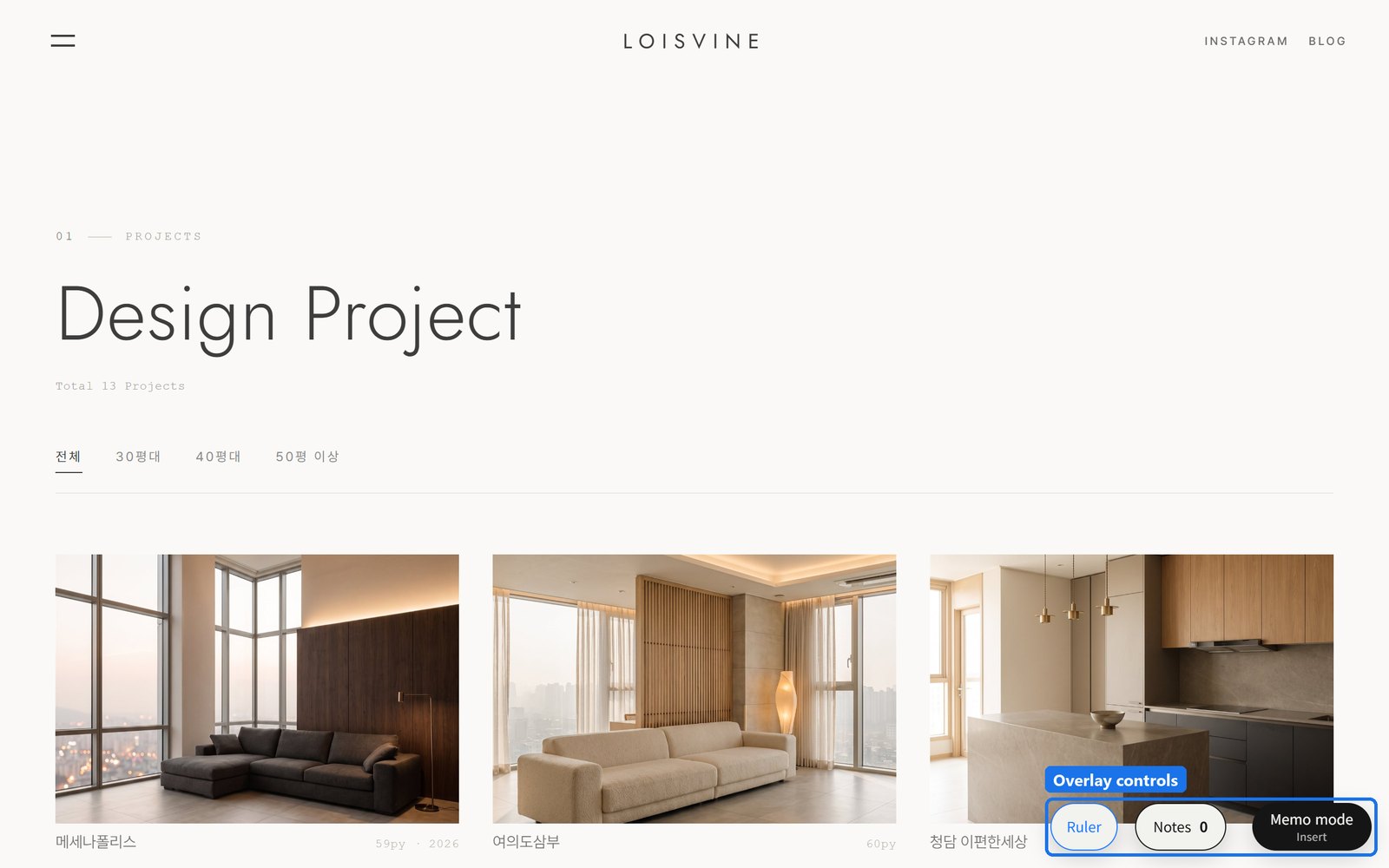
Open the page you want to review and click the toolbar icon. Three buttons appear at the bottom right: Ruler, Notes and Memo mode. The overlay runs only in this tab; click the icon again to turn it off.
검토할 페이지에서 툴바 아이콘을 누르면 오른쪽 아래에 픽셀 자 · 메모 · 메모 모드 버튼이 나타납니다. 이 탭에서만 켜지고, 아이콘을 다시 누르면 꺼집니다.
3Turn on memo mode
메모 모드 켜기
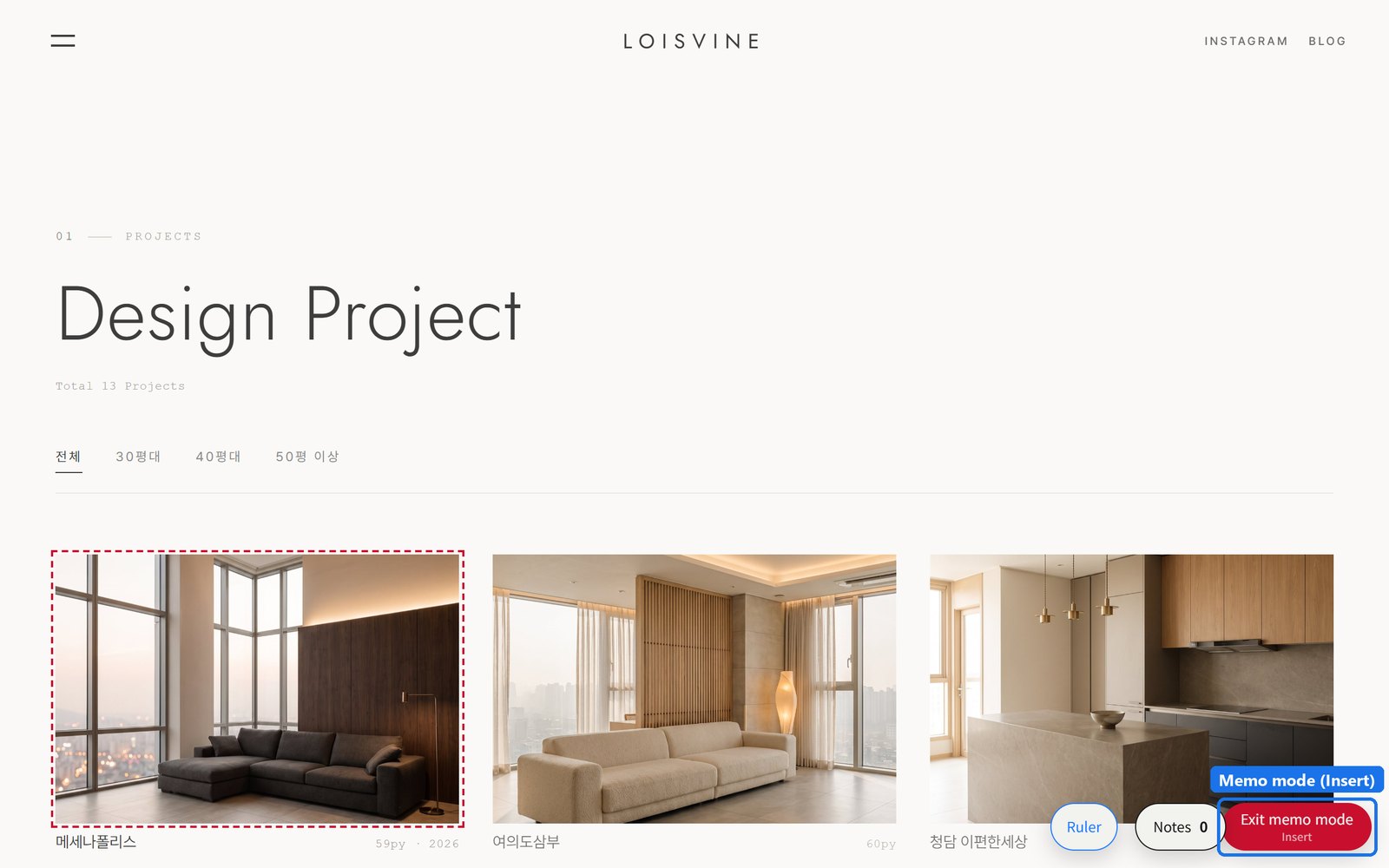
Click Memo mode or press Insert. The cursor becomes a crosshair and whatever is under it gets a red dashed outline. While memo mode is on, links don’t open, so you can click anything safely.
메모 모드 버튼을 누르거나 Insert 키를 누르세요. 커서가 십자로 바뀌고 마우스 아래 요소에 빨간 점선이 생깁니다. 메모 모드에서는 링크가 열리지 않아 마음 놓고 클릭할 수 있습니다.
4Click, pin, write
클릭해서 핀 찍고 메모하기
Click the spot you want to comment on. A numbered pin appears and the note editor opens with an automatic screenshot of that spot. Type your note, add a reference link if you like, and attach example images or files (PDF and more). Notes save as drafts while you type; Save or Ctrl+Enter confirms.
의견을 남길 곳을 클릭하면 번호 핀이 생기고, 그 위치의 자동 캡처가 들어간 입력창이 열립니다. 메모를 쓰고, 필요하면 참고 링크와 예시 이미지·파일(PDF 등)을 붙이세요. 쓰는 동안 자동으로 임시저장되고, 저장 또는 Ctrl+Enter로 확정합니다.
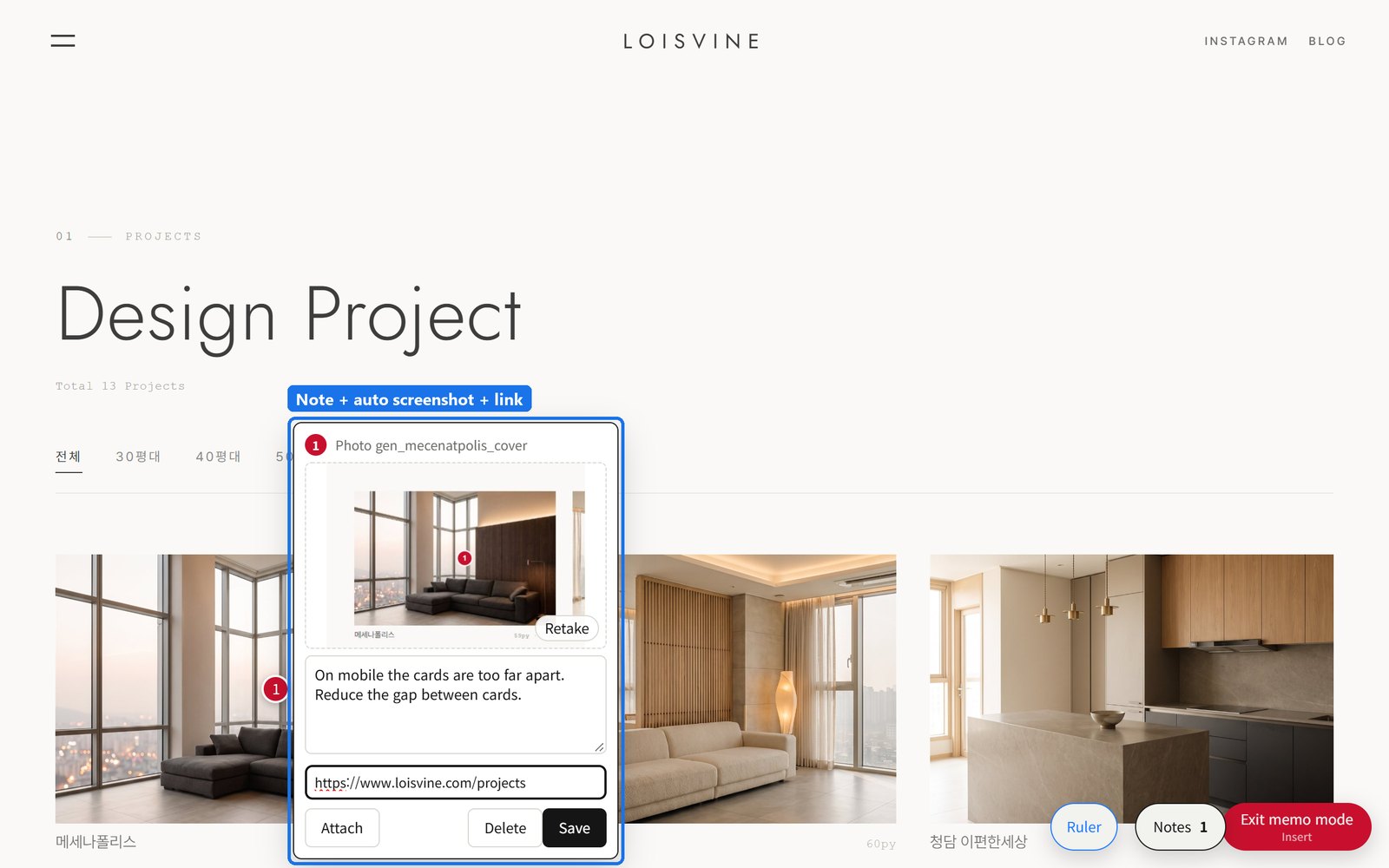
메모를 지우려면 핀 번호를 다시 누르거나 삭제를 누르세요. 빈 메모는 바로 지워지고, 저장된 메모는 한 번 확인합니다.
5Pin anything — even empty space
어디든 핀 찍기 — 빈 곳도
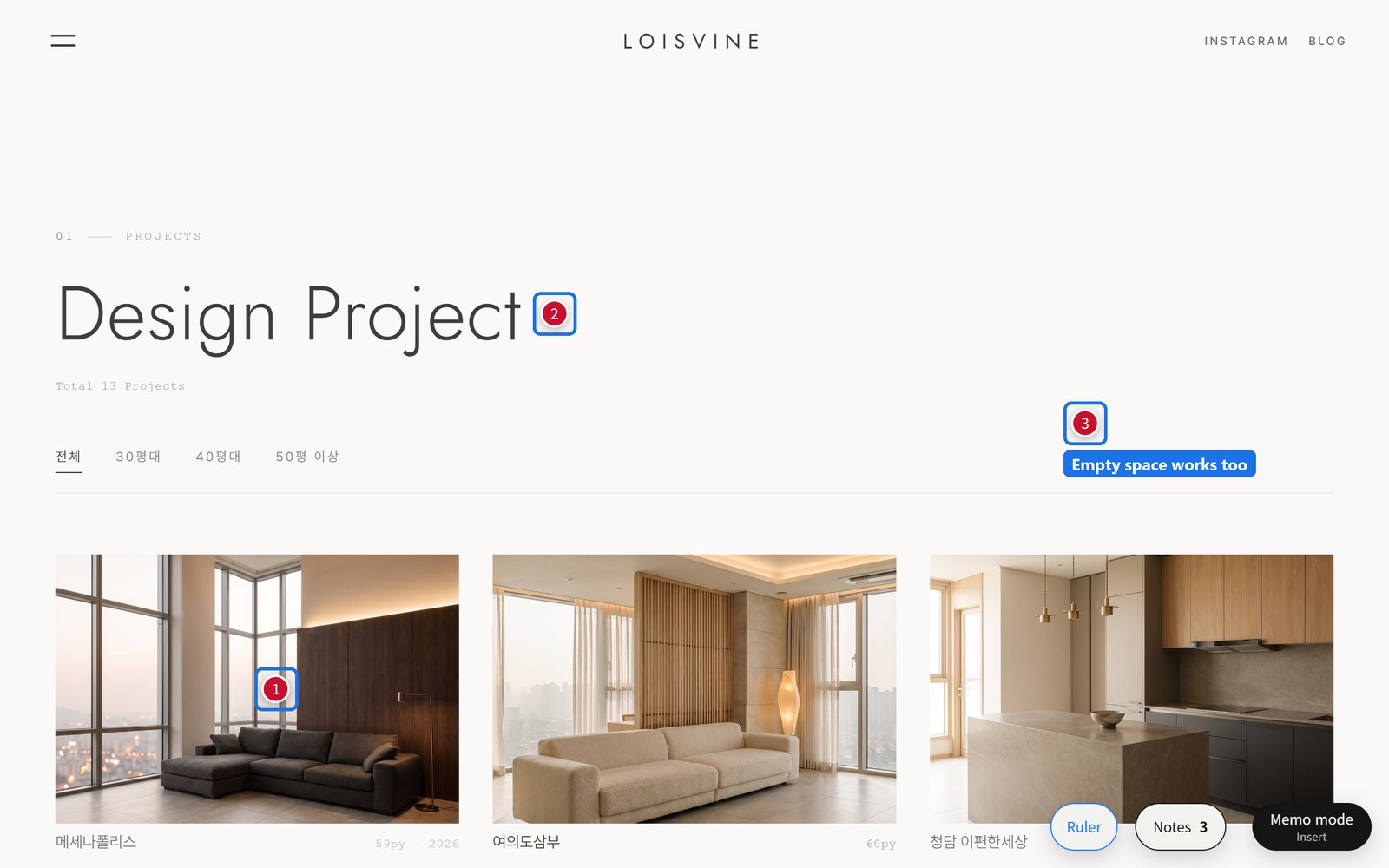
Pin photos, headings, buttons, or a blank area where something is missing. Pins stick to the element, so they stay in place when the layout changes or the window is resized.
사진, 제목, 버튼은 물론 무언가 빠진 빈 공간에도 핀을 찍을 수 있습니다. 핀은 요소에 붙어 있어서 레이아웃이 바뀌거나 창 크기를 바꿔도 제자리를 지킵니다.
6All notes in one panel
메모 목록 패널
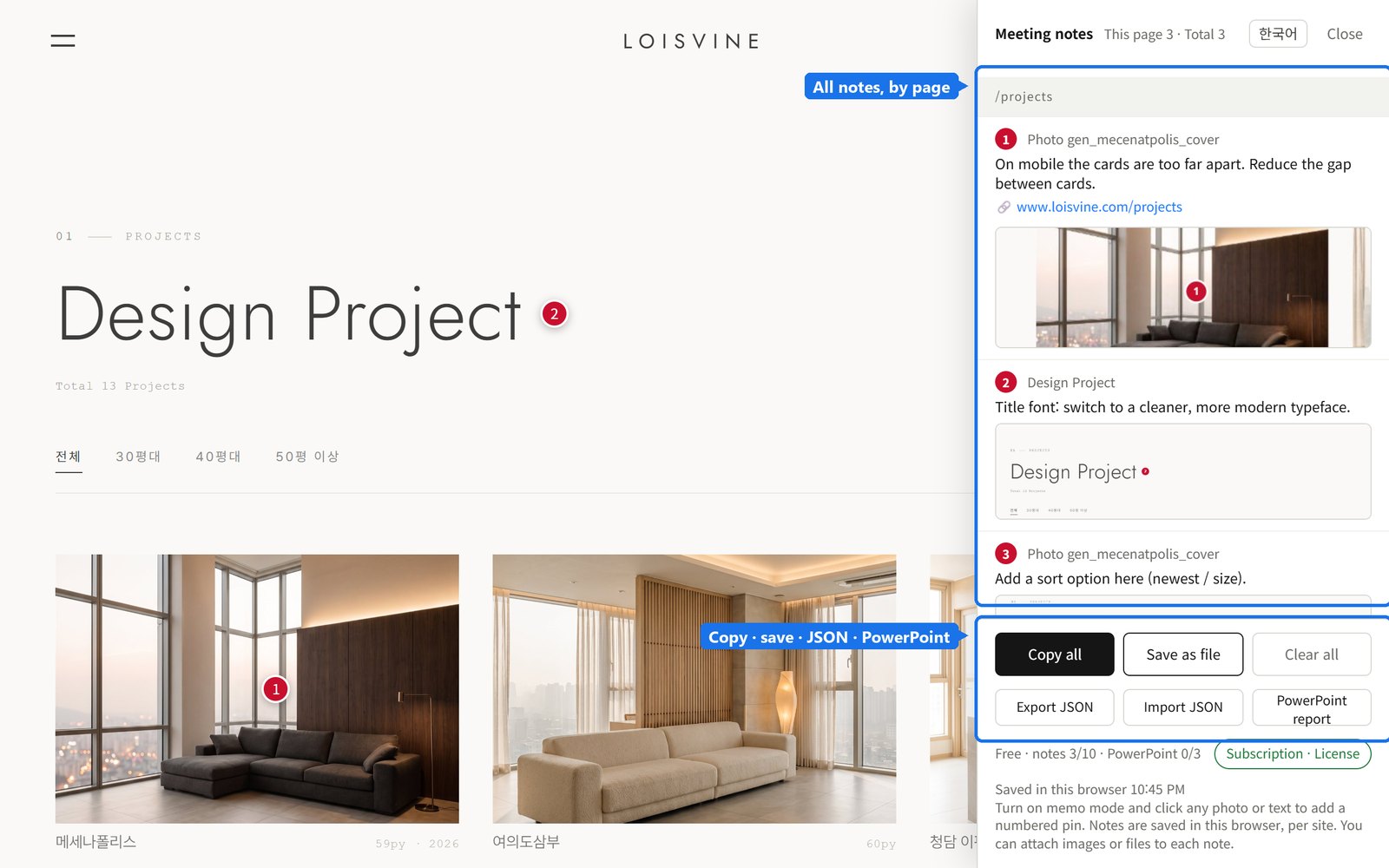
Click Notes to see every note on the site, grouped by page, with screenshot previews and links. Click a note from another page to jump there. The buttons at the bottom copy, save and share the whole review.
메모 버튼을 누르면 사이트의 모든 메모가 페이지별로, 캡처 미리보기·링크와 함께 보입니다. 다른 페이지의 메모를 누르면 그 페이지로 이동합니다. 아래 버튼으로 검토 내용을 복사·저장·공유합니다.
7Share it as a PowerPoint report
PPT 기획서로 공유하기
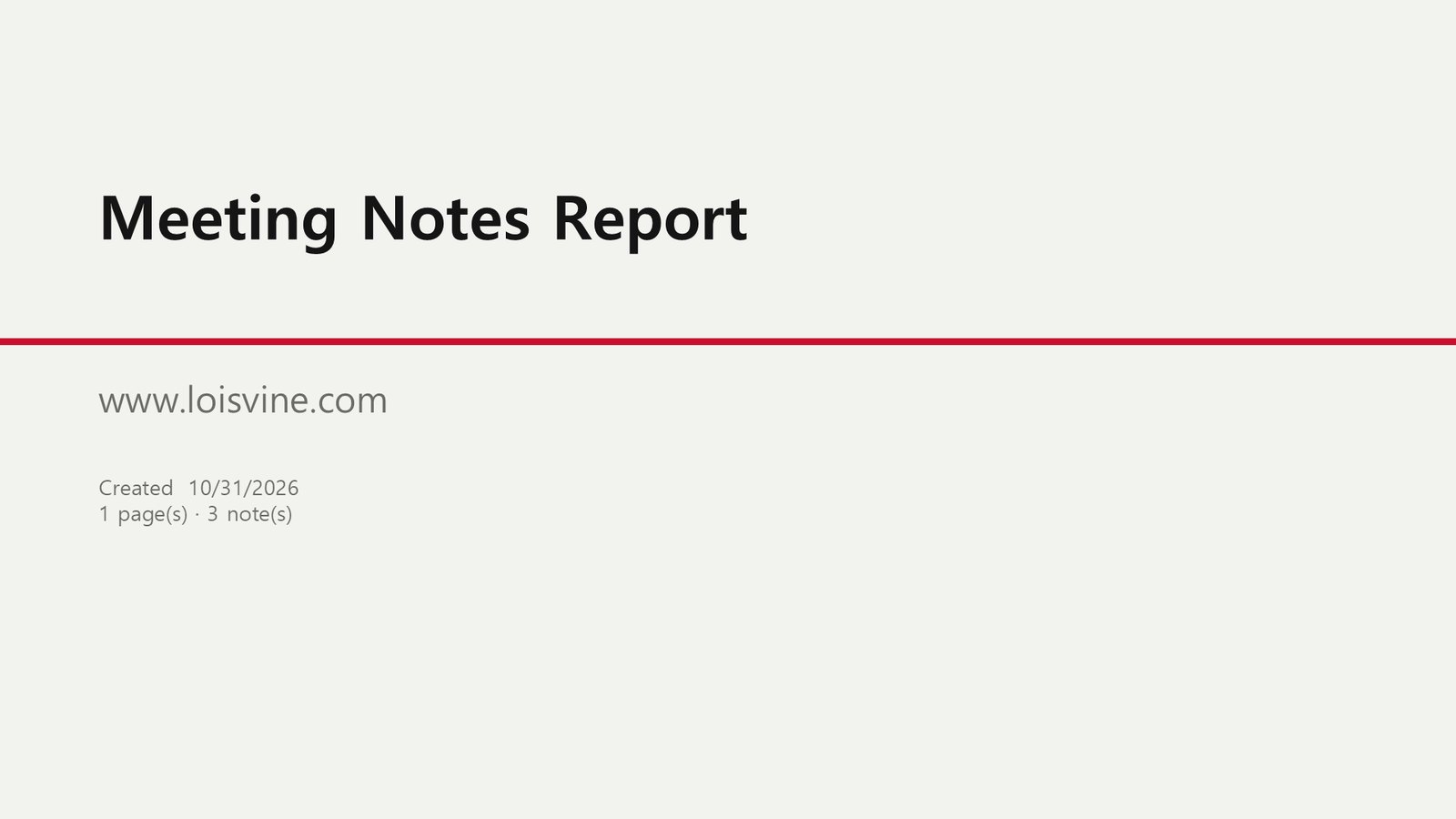
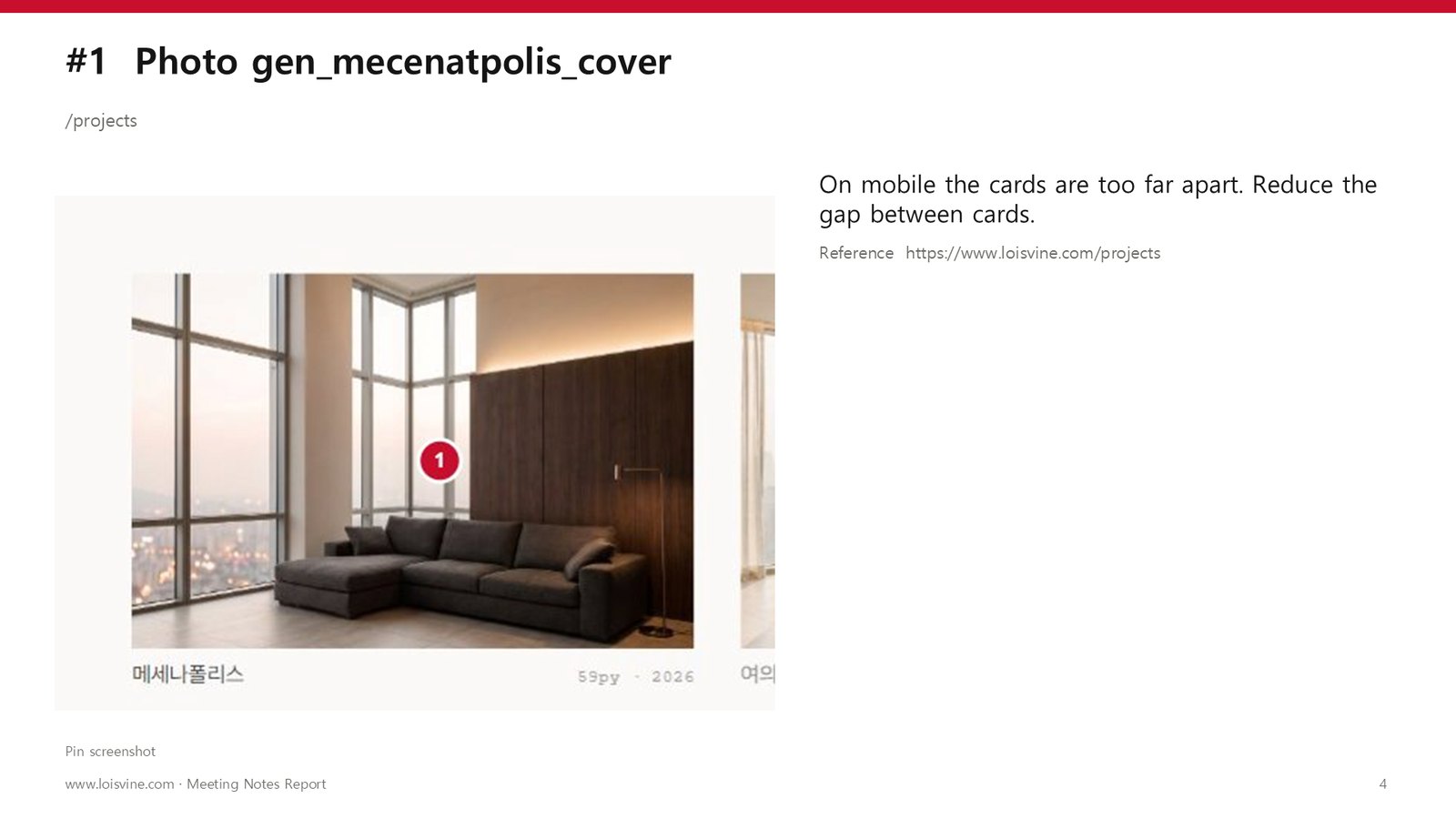
Click PowerPoint report. You get an editable .pptx: a cover, a summary, and one slide per note with its screenshot on the left and the note, link and attachments on the right. Open it in PowerPoint, Keynote or Google Slides.
PPT 기획서를 누르면 편집 가능한 .pptx 가 만들어집니다. 표지, 요약, 메모 1건당 1장(왼쪽 캡처, 오른쪽 메모·링크·첨부)으로 구성되고, 파워포인트·키노트·구글 슬라이드에서 열 수 있습니다.
9Pixel ruler
픽셀 자
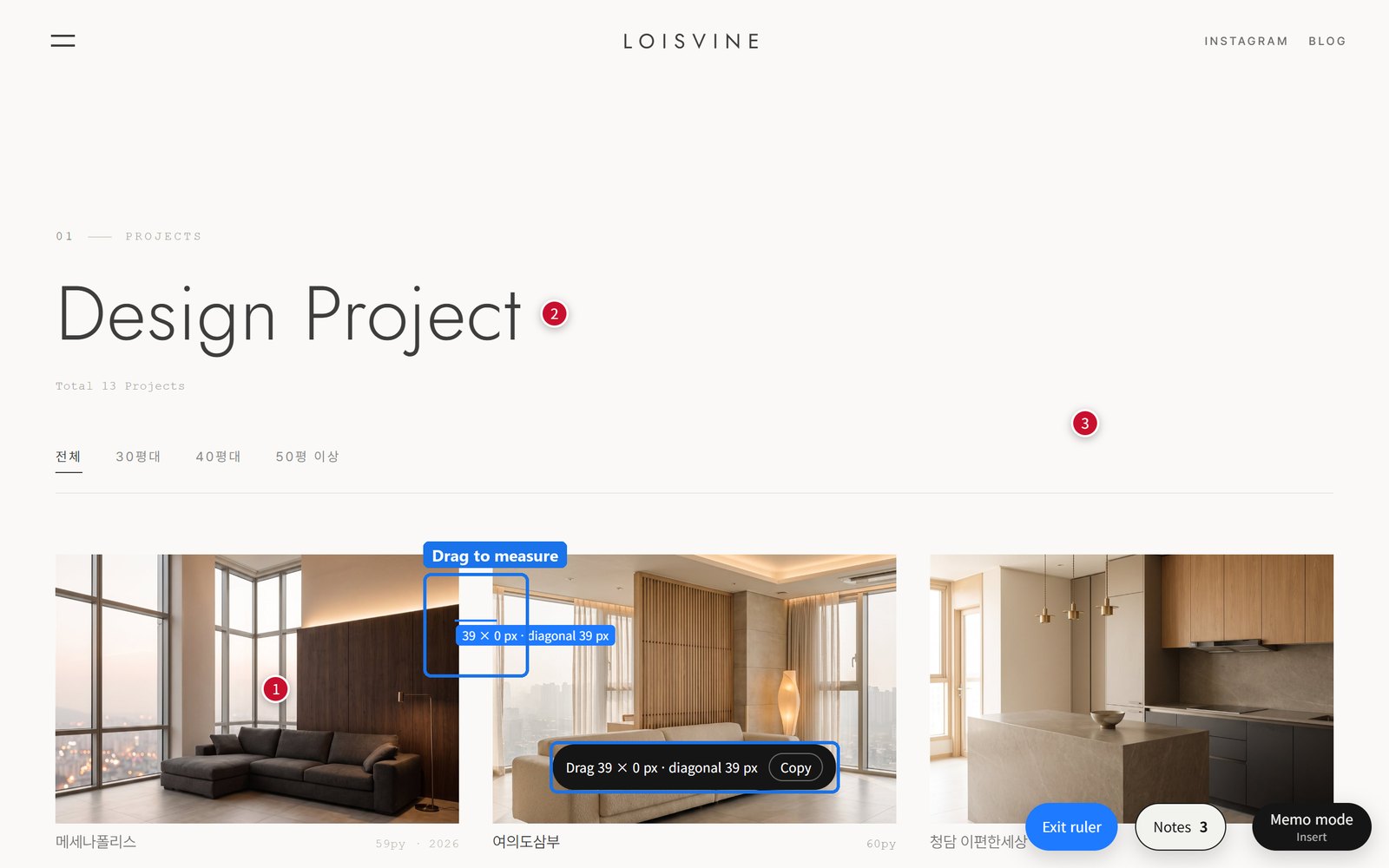
Click Ruler. Hover over an element to see its size, or drag to measure a distance — here, the 39 px gap between two cards. Copy puts the value on your clipboard; Esc turns the ruler off.
픽셀 자를 누르세요. 요소 위에 올리면 크기가, 드래그하면 거리가 나옵니다. 예시는 카드 사이 간격 39px. 복사로 수치를 복사하고 Esc로 끕니다.
10English / 한국어
언어 전환
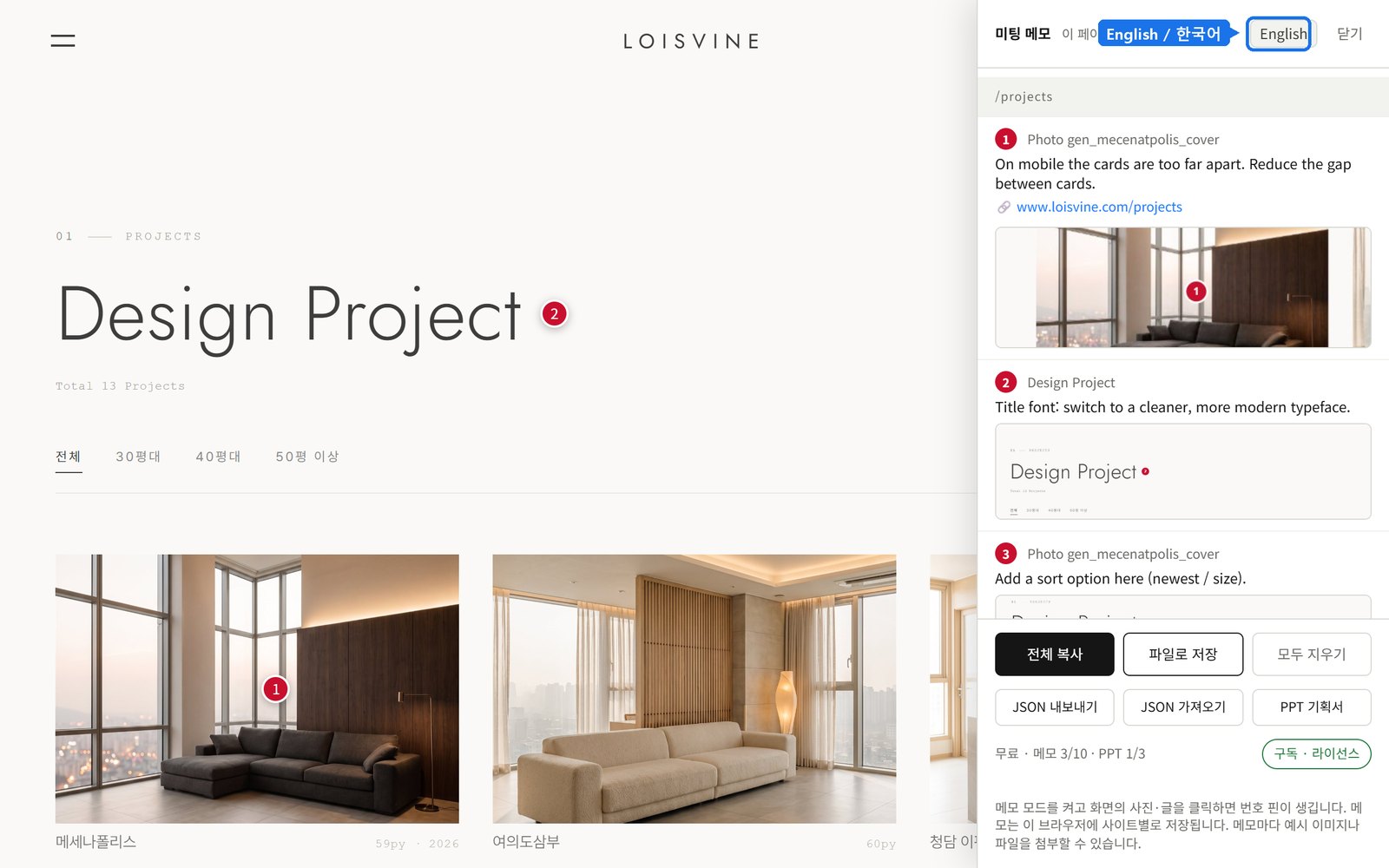
The interface follows your browser language. Switch any time with the 한국어 / English button at the top of the notes panel; the PowerPoint report and text exports use the same language.
화면 언어는 브라우저 언어를 따릅니다. 메모 패널 위쪽 English / 한국어 버튼으로 언제든 바꿀 수 있고, PPT 기획서와 텍스트 내보내기도 같은 언어로 만들어집니다.
11Free & Pro
무료와 Pro
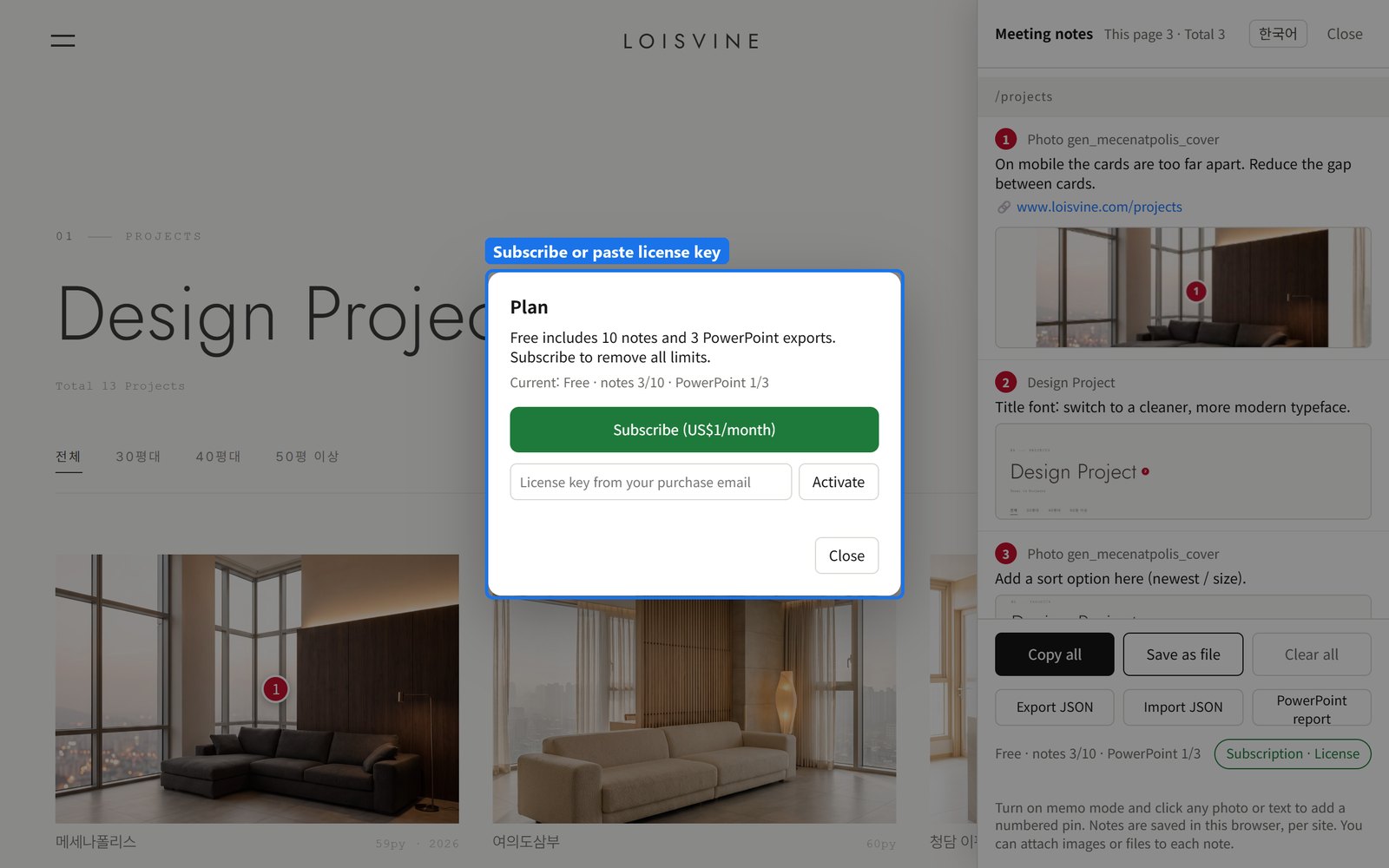
Free includes 10 saved notes and 3 PowerPoint reports, with every other feature. Pro is US$1/month for unlimited notes and reports. Click Subscription · License in the panel → Subscribe, then paste the license key from your receipt email and click Activate. One license works on up to 3 Chrome browsers.
무료로 메모 10개, PPT 기획서 3회까지 모든 기능을 쓸 수 있습니다. Pro는 월 1달러로 메모·PPT 무제한입니다. 패널의 구독 · 라이선스 → 구독하기로 결제한 뒤, 영수증 메일의 라이선스 키를 붙여 넣고 등록을 누르세요. 라이선스 하나로 크롬 브라우저 3대까지 쓸 수 있습니다.
12Shortcuts & tips
단축키와 팁
| Key · 키 | Action · 동작 |
|---|---|
| Insert | Memo mode on / off · 메모 모드 켜기/끄기 |
| Ctrl+Enter | Save the note · 메모 저장 |
| Esc | Close the editor, the ruler or an enlarged image · 입력창·픽셀 자·큰 이미지 닫기 |
- Notes stay in your browser only — nothing is uploaded. Use Export JSON to back up or move to another computer.
메모는 내 브라우저에만 저장되고 어디로도 올라가지 않습니다. 백업·다른 컴퓨터로 옮길 때는 JSON 내보내기를 쓰세요. - Moving to another page of the same site keeps the overlay on. On another site, click the icon again.
같은 사이트의 다른 페이지로 가도 오버레이가 이어집니다. 다른 사이트에서는 아이콘을 다시 누르세요. - It can’t run on Chrome’s own pages (new tab,
chrome://, the Chrome Web Store) or inside iframes.
크롬 자체 페이지(새 탭,chrome://, 웹 스토어)와 iframe 안에서는 동작하지 않습니다.
Questions? doctordog1221@gmail.com · FAQ · Privacy